Nexus 4, Nexus 7, Nexus 10 Officially Announced

Posted by Unknown Jumat, 17 Mei 2013 0 komentar
Google just announced on the official Google blog, the price and availability for the Nexus 4, Nexus 7 with 32 GB and 3G and the Nexus 10. Thus, all three devices are now officially released. In addition, we are excited about how low the prices for all high-end devices are. Android is good

Hurricane Sandy has forced Google to cancel the event in New York, but the Mountain View company has, however, announced the new products of the Nexus family. The numerous rumors in recent weeks are now confirmed with the launch of the nexus smartphone Nexus 4 and Nexus 10, accompanied by a  model with 32 GB of memory, the Nexus 7. For all these devices, Google has developed Android 4.2, the new release of the operating system that introduces a number of new features and improvements.

Google Nexus 4

nexus 4 release

The Nexus 4 is a smartphone with True HD IPS display Plus 4.7-inch (1280 × 768 pixels and 320 ppi) protected with Gorilla Glass 2, quad-core processor Qualcomm Snapdragon S4 Pro 1.5 GHz, 2 GB RAM, 8 or 16 GB of internal flash memory (no micro SD slot), dual cameras (8-megapixel rear and 1.3 megapixel front), WiFi 802.11 b / g / n, Bluetooth and NFC chip. The 2100 mAh battery provides up to 10 hours.

As was done by Nokia with the Lumia 920 and 820, Google decided to integrate a wireless charging system compatible with the Qi standard. This should allow you to use the same accessories designed for smartphones of the Finnish manufacturer. Google will offer its still a device called Wireless Charging Orb. It is an object of spherical shape "sliced" with an angle of approximately 45 degrees to allow the support of the Nexus 4. Both the charging dock that the smartphone is equipped with magnets that prevent slipping of the device. Daydream functionality included in Android 4.2 allows you to view photos, news from Google Currents and other information even when the Nexus 4 is charging.


Google has not signed any agreement with the U.S. phone operators and then the Nexus 4 will be "unlocked". No support for LTE networks, but 3G HSPA +. The sale of the 8 and 16 GB versions will begin on November 13th on Google Play store in the U.S., Canada, UK, Germany, France, Spain and Australia. Prices are respectively 299 and $ 349. The 16 GB version will also be available through T-Mobile for $ 199 with a two year contract.

Google Nexus 10

After the 7-inch model, Google announced a larger tablet based on Android 4.2 Jelly Bean. The Nexus 10 has a 10-inch screen Super PLS with an impressive resolution of 2560 × 1600 pixels (300 ppi). The hardware includes a dual core processor Samsung Exynos 5250 1.7 GHz (ARM Cortex A15) with Mali T604 GPU quad core, 2 GB RAM, 16 GB or 32 GB of internal memory, 5 megapixel rear camera and front 1.9-megapixel, micro USB, micro HDMI, two NFC chip, stereo speakers, Bluetooth 4.0 and WiFi 802.11b/g/n.

The 9000 mAh battery provides up to 9 hours of HD video playback and 500 hours of standby time. The thickness of the tablet is 8.9 mm, while the weight is 603 grams. The Nexus 10 will be on sale from November 13 on Google Play in the United States, United Kingdom, Australia, Canada, Germany, France, Spain and Japan. Prices are $ 399 for the 16GB model and $ 499 for the model 32 GB.

Google Nexus 7 32GB and 32GB + Mobile

nexus 7 tablet hands on

For the younger brother of the Nexus 7 Google has reserved a double novelty. The tablet will be available with 32 GB at $ 249, while the 16GB model will cost $ 199. Exits from the catalog 8 GB model (sold only in the U.S.). The 3G version also comes with support for HSPA + and Android 4.2 at a price of $ 299. The tablet will be "unlocked" and, like other products, can be purchased by November 13 on Google Play Store in the U.S., Canada, UK, Australia, France, Germany and Spain.


There is still an atmospheric video that shows all three devices as well as a few of the new features of Android 4.2 in action:


Baca Selengkapnya ....

Tutorial Hide Folder On Android Smartphone

Posted by Unknown 0 komentar
By default, all images and videos available in the Android smartphone will be displayed in the gallery which is stored in the internal storage or external storage (microSD), and there is a things that not so pleasant, as every individual must have an image or a video that does not want to be accessed by someone else . Has become a normal human being (someone maybe your friend), when you see or hold the smartphone, the first thing accessible is the camera or gallery app. To avoid such things happen, please follow the simple tips below how to hide folders and images from gallery in your Android smartphone. Android is good

Requirements

  • Android 4.0 ICS
  • Does not require root access
  • Smartphone your own file browser function. Eg MyFiles applications available in Samsung releases smartphone model
  • NOTE: There is no guarantee this method can be applied in devices that use Android Gingerbread or Honeycomb version as I only do testing in ICS 4.0 devices only.


How To Hide Folder And Image From Gallery
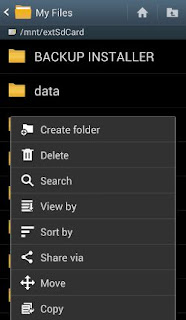
  1. Create a new folder on either internal or external storage (recommended) use a file browser application
    To Download Myfiles paste this url to your browser http://adf.ly/E9b3Z
    Eg: - MyFiles -> extSdCard -> Menu -> Create Folder -> enter a folder name eg "TOP SECRET" -> Save.
    hide folder on android
  2. Move all the video and image you want to hide into that folder.
    Eg: - DCIM folder (images from the camera) -> Menu -> Move -> Select All ->select the desired image / video -> Done -> browse to the folder "TOP SECRET" -> Done (wait until the move process is complete).
  3. after the transfer process is completed, rename the folder "TOP SECRET" by placing a dot (.) In front of ".TOP SECRET" and Save.
  4. Here's how: - Hold your "TOP SECRET" for a while -> Rename to ".TOP SECRET" -> OK. Folders ".TOP SECRET" and in it are no longer displayed in the file browser and gallery.
    hide file on android
  5. To access the folder. "TOP SECRET": - File Browser (MyFiles) -> Menu -> Settings -> tick Show Hidden Files.

Ok, done!

Tips hide folders and images from gallery can also be applied to any - any files, documents, images or video are independent. However, I suggest that your file is stored in a folder that easy to remember.

Baca Selengkapnya ....

Google Nexus 4 Officially Released

Posted by Unknown Kamis, 16 Mei 2013 0 komentar
Without an extra event, After we all know that yesterday google have cancelled android playground event. The google event cancelled because of hurricane. And Today Google has just announced a bit of news of their new smartphone release. With this, the Nexus 4, which is built by LG the Various details about the device were already known, And we also have an official confirmation. Android is good

The Galaxy Nexus 4 comes naturally with Android 4.2 and therefore some new features are will also included to the market. Particularly noteworthy, the price will be, as the unit will cost in the 8-GB version only for 299 euros. For the 16-GB version will be 50 euros more expensive, so if you want the 16 GB you need 349 euros. The Release date of Google Nexus 4 is in the 13th November, the device is available on play store.


Features

Galaxy Nexus 4 Specification
  • Qualcomm Snapdragon S4 Pro processor with 1.5 GHz quad-core CPUs Krait
  • Android 4.2, Jelly Bean
  • 3G (WCDMA), HSPA +
  • 4.7-inch WXGA IPS True HD Plus display (1280 x 768 pixels) 320 ppi, Corning Gorilla Glass 2
  • Memory 8GB / 16GB
  • 2GB RAM
  • Camera: 8.0 MP rear and 1.3-megapixel HD front
  • (Permanently installed) 2,100 mAh Li-Polymer battery
  • Size: 133.9 x 68.7 x 9.1 mm
  • Weight 139 grams
  • NFC
  • Wireless charging


NEXUS 4 FROM EUR 299,00 AVAILABLE IN 13 th NOVEMBER
lg nexus 4 official release


Baca Selengkapnya ....

Easy Tutorial Root Galaxy Nexus On Android 4.1

Posted by Unknown Rabu, 15 Mei 2013 0 komentar
Last month is known as Jelly Bean OTA update for the Galaxy Nexus release. And after update your nexus will loses the root acces, so you must root your device again if you want to get more benefit from android 4.1 jelly bean. And because the root process on this device is maybe rather need more step then any other device so we will give to you easy tutorial how to root Galaxy Nexus and also how to unlock its bootloader. unlock bootloader is needed when you want to install custom rom. this will work for many galaxy nexus device. You can check wether your model is in the list or not. on tutorial below. Android is good

Jelly Bean is a series of new Android OS that has been present in the Galaxy Nexus via OTA update. of course for who that have upgrade his Galaxy nexus to Jelly Bean could not wait to conquer it by installing the root acces so that it can freely install a lot of application that require root access to the OS Android itself. If you have a Galaxy Nexus and the OS is still Ice Cream, Jelly Bean to menguprade to be able to follow your updates to Galaxy Nexus Jelly Bean in the previous post.

Okay we just started rootingnya stages:

Read First


  • To root Galaxy nexus you must install the recovery mode. But to install the recovery you must unlock the bootloader first.
  • Do With Your Own Risk


How To Root Galaxy Nexus

  1. Unlock Galaxy Nexus bootloader to install the recovery. How to unlock the bootloader can be read on a guide in the previous post (follow steps A and B).
  2. Download and extract the tool for recovery and root GalNexJBRoot.zip . If you follow the steps of the guide in the previous post, it is definitely downloaded first.
  3. Extract the GalNexJBRoot.zip file will generate directory GalNexJBRoot
  4. Copy CWM-SuperSU-v0.94.zip file into the sdcard (internal storage)
  5. Turn off your Galaxy Nexus
  6. Enter into bootloader by pressing volume up, volume down and power off the samehow to root galaxy nexus
  7. Connect your device to pc or laptop use usb data cable
  8. From a command prompt (Windows: Start -> Run -> CMD), enter into GalNexJBRoot directory by type cd GalNexJBRoot and then type:
    fastboot flash recovery recovery-clockwork-6.0.1.0-touch-maguro.imginstall clockworkmod on galaxy nexusfor Mac, use the fastboot-mac, linux: fastboot-linux
  9. Press the volume down to select Recovery Mode menu and press the power button to reboot into the recovery menu.
    recovery mode on galaxy nexus
  10. In the recovery menu, select install zip from sdcard menu
  11. Select choose zip from sdcard menu
  12. Select the file CWM-SuperSU-v0.94.zip
  13. Select Yes - Install CWM-SuperSU-v0.94.zip
  14. Wait until the installation is complete (Install from sdcard complete)
  15. Select the Go Back menu and then select the reboot system now
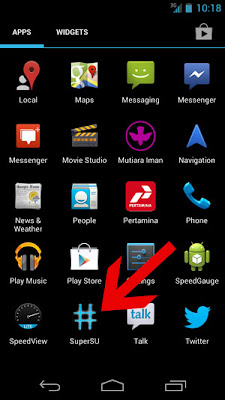
  16. Congratulations .. The root process on Galaxy Nexus Jelly Bean have been successfully finished. you have to check it out, open the apps menu and find the application icon SuperSU with a "#"

galaxy nexus root on jelly bean

Done - now you have successfully root galaxy nexus and have been finished to prepare for install custom rom. next time i will show come custom rom for this smartphone. so stay update with this blog

Baca Selengkapnya ....

Nexus 10 - Hands-On (video) and first impressions

Posted by Unknown 0 komentar
Today we will discuss about Nexus 10 more completely then engadget.com did. But then I realize that not everyone of English is really powerful and the article from Engadget still need for a few more reviewed, I grasp it here for you together again briefly, at least in their opinion about the Nexus 10, because the technical data can be found here nexus 10 officiall. In this post we also give the nexus 10 review on video.

Impressive Technology

Engadget first had some doubts whether this tablet would suffice the needs of power users. But the dispersed fairly quickly, as they had for a while the Nexus 10 in hand.Android is good, They were impressed by just about every aspect: It is extremely fast and the graphics are pretty much the best they have ever seen. The angle is very good and the individual pixels you almost do not even realize. given the rich resolution of 2560 x 1600 pixels and therefore 300ppi hardly a miracle. The "Real True RGB Stripe PLS" display Engadget praises as one of the best at the time.

The Nexus 10 is thinner and lighter than the iPad, but the quality of the workmanship and the materials used should be as far as decent. It is very "soft" and stable feel in the hand, only the back will be quite a fingerprint magnet. Is Samsung's otherwise not sooo very high build quality, so makes the Nexus 10 a solid impression
nexus 10 on video

Software

Also in this case Brad Molen of Engadget no cause for criticism - especially the multi-user support is here underlined twice. Here Google has also borne in mind that different users need different Appeinstellungen, Scores, and the like. But the menu is praised here attributable otherwise typical tablet layout of Android, and is easy to use so much more intuitive.

Criticism?

By Engadget it is not really find. That may or may not necessarily be positive. I miss for example, a model with UMTS module, since a tablet is too sometimes mobile use, and I personally think nothing of it to use my smartphone or even a separate device as a mobile hotspot. The more important point is, though I think the whopping price premium between the 16GB and the 32GB model. $ 100 for 16GB more memory then something is very steep.

Ok now let's see Nexus 10 Hands On Video

Baca Selengkapnya ....

SYGIC GPS Navigation v11.2.6 Apps For Android

Posted by Unknown Selasa, 14 Mei 2013 0 komentar
The latest version of SYGIC GPS Navigation v11.2.6 for Android is finally here. There are many people that waiting this new version. Because they very curios with this new gps application for android. In this Sygic GPS there are many feature that we don't find in the old version. This application is very usefull for someone that don't know where he is. So With this application they can look the map with their android smartphone so that they can find the right way to go to their destination. So, as usual for Android device users, download link is in below. Android is good


Features On SYGIC GPS Navigation v11.2.6
  • search the numbers of home in germany and czech republic fixed
  • introducing real-time traffic information.
  • A Gps apps for android that featured with features which is totally integrated traffic in your country
  • free map update
  • compatibility with android 4. 0

Download


SYGIC Navigator v11.2.6 apk (Dropbox)


For the PC version Download (SYGIC Downloader v1.9), you can download from the link below. But please be patient for the tutorial. i will post it tomorrow so keep up to date with this blog

SYGIC Downloader v1.9 - Mediafire

Screenshot
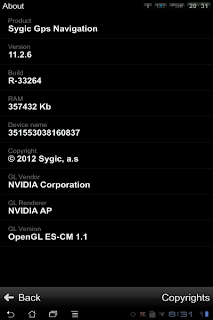
Sygic v1126 for android

gps application for android

For more information installation read on how to install gps apps on android phone


Baca Selengkapnya ....

Install GPS Navigator Apps For Android Smartphone

Posted by Unknown Senin, 13 Mei 2013 0 komentar
Many of Android smartphone have been equipped with gps system. so if you want to know where are you now or want to get road map you can use your android phone as your GPS navigator. so today i will share tutorial install gps application on android. In this article i will use SYGIC navigator application. SYGIC Navigator is one of the best gps apps for Android users. For Android smartphone users, your phone is incomplete if it is not equipped with GPS software right. But unfortunately there are some of the apps is not free. Android is good

In the past, going where - which especially places never intended, looking dizzy, stop and ask those sorts - many more, must all have right experience. So, today's your lucky day this reason I will share GPS application that I can personally say that the best and must have. Known as SYGIC GPS Navigator . It can be used in "offline" without the need for internet connection.

Previously, I've used many types of GPS like Papago, NDRIVE , NAVIGON, Google Maps, co-pilot and etc. In conclusion, SYGIC Navigator is the best.

install gps apps on android

SYGIC Navigator For Android

Features On SYGIC Navigator:
  • Turn by turn voice guided GPS navigation
  • Visual notification of upcoming speed limit change
  • Build and save advanced routes with multiple waypoints
  • Real-Time Traffic
  • Speed ​​camera and speed limit display and audio warning
  • Edit routes or avoid parts of the route
  • 3D cities and landscape
  • Spoken street names
  • Dynamic Lane Guidance ™ and Signposts
  • Interactive map - tap on Any street, POI or photo to choose action

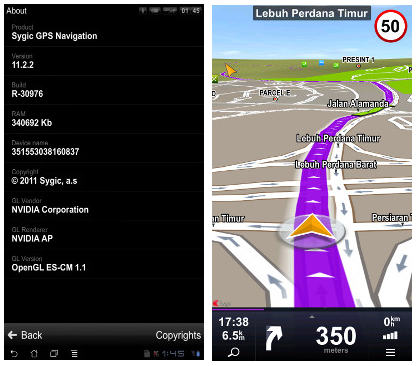
On this SYGIC Navigator v.11.2.2 version it is only support Android 2.0.1 - 3.2. (Gingerbread and Honeycomb). SYGIC 11.2.2 Navigation is updated in right on 30 November 2011.

UPDATE
there have been released version for android 4.0 ICS Download Sygic v11.2.6 read also copilot live premium europe gps navigator for android


Requirements
Below is required file that before starting the process of installation, you must download some software first.

1. SYGIC navigator v.11.2.2 apk - UPDATE go to link above for download (v11.2.6)
2. SYGIC Downloader (this is "optional", according to Tutorial 2) - UPDATE - (v1.9 HERE )

Below, I have provided two ways how to install SYGIC GPS Navigator, all depending on your internet connection ability. if your android phone have good connection you can use tutorial 1. But if you don't have good coneection for your phone you can use tutorial 2, this will download via laptop or pc


Tutorial 1 - Install GPS on android

  1. After completing the download v.11.2.2 apk. Transfer the file to your device. you can use usb cable or bluetooth from the laptop to the phone. Save the file to either the "internal storage" or "external storage" for which there is external storage slot.
    NOTE: Make sure your file format .Apk at the end 
  2. Now we can start the process of "installation". Find the file navigator v.11.2.2 apk SYGIC that have been in saved to your device. You can use the application "MyFile" for Samsung users
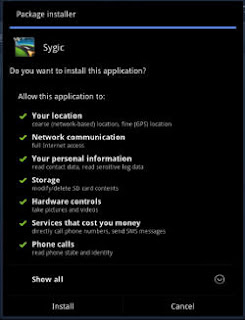
    Click SYGIC Navigator v.11.2.2 apk file, a pop up window will appear. Click "install". See the screenshot below.
    Sygic navigator Installer apk
    if you've Done installing, there are 2 new icon in your application list , SYGIC and SYGIC Downloader. 
  3. Click the "icon" SYGIC downloader, (make sure you are connected to WiFi or 3G), allowing to download database file and configuration file is done. File size is around 262.68MB. Wait until all the "download" is complete.
  4. After Completed step 3, now you can launch SYGIC application. First launch it will ask to "register". Simply click on "Skip", no need to register at all.
  5. Done


2nd Tutorial

For this tutorial, make sure you only "install" SYGIC GPS navigator v.11.2.2 apk after completing Step 1 - Step 3 below to avoid any errors later on.
  1. For those who choose to "install" this way, "download" SYGIC Downloader (latest version v1.9) to a PC / laptop. "Unzip" or "extract" file and in it there are two files namely DotNet setup and SYGIC Downloader 1.9.
  2. Click SYGIC Downloader 1.9, a pop up window will come out like the screenshot below.
    Sygic Downloader 1.9
    Check "Download base files" in the top left corner
    Select your country/ country that you want to download the database
    it will be better, to facilitate the work, click on the "Path" and keep it on "Desktop" so that later easily find files that have been in the "download"
    Click "Start"
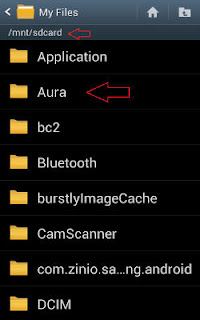
  3. after you do the step 2 above, a new folder called "AURA" will appear on your desktop.
    "Transfer" the AURA folder to your smartphone, make sure it is in the main folder your sdcard (internal storage). Do not "transfer" to "external storage". See the screenshot below.
    Aura Folder Directory
    Now is the time to "install" SYGIC Navigator  apk. Follow Step 1 and Step 2 in Tutorial 1.
  4. after finishing the installation of apk, click the icon SYGIC Downloader on your smartphone. You still need an internet connection to download "configuration files" (19 MB) only. This file is required for the program to work properly SYGIC based on the type and model of your android phone.
  5. click the SYGIC icon on your smartphone, skip registration and hope - hope everything will work properly.


Screenshot

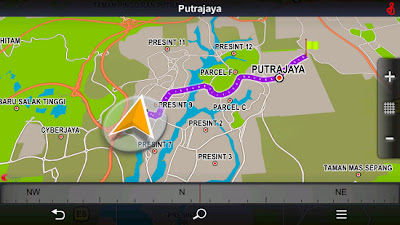
Route Calculations sygic
Route Calculations

tutorial install sygic
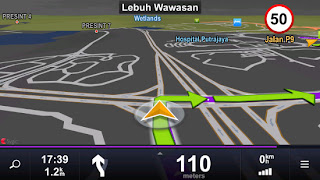
Night View

Good luck and if you have any questions, problems, ideas and so on, do not be shy - feel free to leave your comment. enjoy your gps navigator for android phone.

Baca Selengkapnya ....
Trik SEO Terbaru support Online Shop Baju Wanita - Original design by Bamz | Copyright of android illegal.